Redact a PDF in Acrobat Pro: Adobe's steps
These are the steps from Adobe's help page "Redact sensitive content in Acrobat Pro" (Adobe):
- Select All tools > Redact a PDF.
- From the left pane, select Redact text and images.
- Select and drag the cursor over the text or image.
- Select Apply from the left pane.
- In the dialog box, choose whether to sanitize and remove hidden information with the toggle.
- Select Continue, then enter a file name and location in the Save Sanitized Document dialog box.
Open the saved copy afterwards and search for a word you removed. It shouldn't be found.
Which versions of Acrobat can redact?
Adobe's learning page for the Redact tool says it is "available only in Acrobat Pro, Premium, or Studio" (Adobe Experience League). If your copy of Acrobat has no Redact a PDF tool, you're probably using a version without it, such as the free Acrobat Reader.
What Acrobat Pro does that InkOut PDF doesn't
Be clear about this before you choose. According to Adobe (Experience League), Acrobat Pro can also:
- Find text and redact every match, and redact whole pages.
- Change how redaction boxes look, including their colour, under Set properties.
- Sanitize the file, removing hidden information, when you apply the redactions (Adobe Help).
InkOut PDF only has boxes you draw (search-and-redact-all is a Pro feature), the boxes are always black, and it has no OCR. If you already pay for Acrobat Pro, use it, then check the result.
No Acrobat Pro? Redact in your browser
- Click Choose PDF above. The file opens in your browser and isn't uploaded.
- Drag on the page to draw a box over each thing you want removed. To remove a box, tap or click it, then tap ×.
- Click Apply redaction(s). InkOut rebuilds each redacted page as an image with the box burned in and leaves the document metadata out.
- Read the automatic check, then click Download redacted PDF.
What we found when we tested it
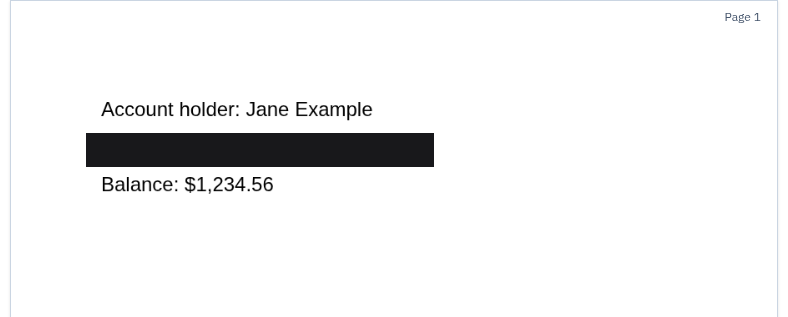
We tested the live tool on October 22, 2026 (PT) in headless Google Chrome 155 on Linux with a 1-page sample PDF we made (an account holder name, an account number and a balance, plus a title and author in the document properties). We drew one box over the account number and exported. We repeated the same steps in Chrome's iPhone 13 and Pixel 7 device emulation, drawing the box with touch input; that isn't a real phone, so treat it as a strong hint rather than proof.
| Check | Result |
|---|---|
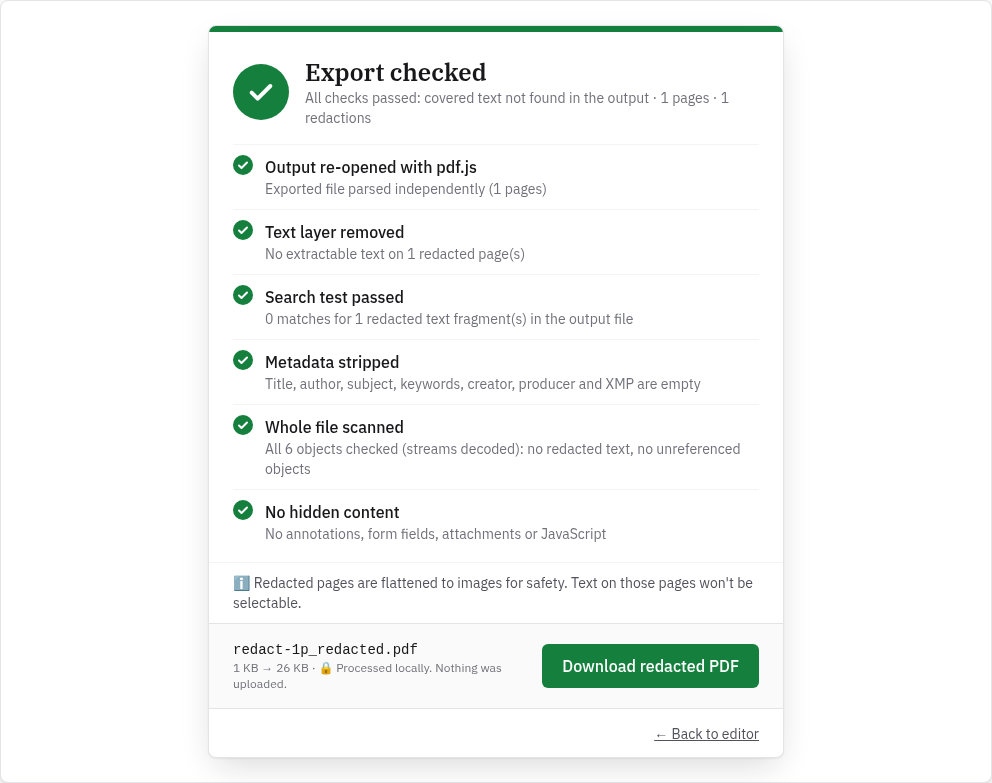
| Automatic check after export | All six checks passed: output re-opened with pdf.js, text layer removed, search test passed, metadata stripped, whole file scanned, no hidden content |
| Text left on the redacted page | None. Text extraction returned an empty page, so the name and balance outside the box were removed from the text layer too (the page is now an image) |
| Document title and author | Empty in the exported file |
| Colour of the box in the export | Pure black (0, 0, 0) on desktop, iPhone and Android emulation |
| File | redact-1p_redacted.pdf, about 27 KB (26.7 KB on desktop); the original file wasn't changed |
Acrobat Pro vs InkOut PDF
| Adobe Acrobat Pro | InkOut PDF | |
|---|---|---|
| Where it runs | Desktop app | Your web browser; the file isn't uploaded |
| Editions | Pro, Premium or Studio (Adobe) | Free up to 5 pages; Pro for more |
| Find text and redact every match | Yes (Adobe) | Search is free; redacting all matches at once is Pro |
| Box colour | Can be changed in Set properties (Adobe) | Black only |
| Hidden information | Optional sanitize step when you apply (Adobe) | Metadata left out of every export |
| Automatic check of the result | Not described in Adobe's steps | Yes, six checks before download |
| OCR for scans | Adobe's help has a separate "Recognize text in scanned documents" topic (Adobe) | No |
Limits of InkOut PDF
- Free: up to 5 pages per file, with boxes you draw. A longer file shows: "This PDF has 10 pages. The free version handles up to 5 pages per file. Unlimited pages are part of Pro."
- Black boxes only. There's no colour setting; the box is always black.
- Pages you redact become images. Text on those pages can't be selected or searched afterwards. Pages without boxes keep their text.
- No OCR. Search only finds text that's really in the PDF. On scans, draw the boxes by hand.
- PDF only. Export Word or Google Docs files to PDF first.
- Pro features: redacting every search match at once, unlimited pages and several files. See pricing.
Related guides
- Redact a PDF in your browser
- InkOut PDF vs Adobe Acrobat
- PDF redaction software compared
- Verify a PDF redaction
- Check a redacted PDF
FAQ
Can I redact in the free Acrobat Reader?
Adobe says the Redact tool is available only in Acrobat Pro, Premium or Studio. Without one of those, use another redaction tool, such as InkOut PDF for files up to 5 pages.
Can I change the colour of redaction boxes?
In Acrobat Pro, yes: Adobe documents a Set properties option for the redaction box appearance. InkOut PDF boxes are always black.
Is drawing a black rectangle in Acrobat the same as redacting?
No. A rectangle comment or drawing only covers the text, which is still in the file. Use the Redact tool, then search the saved copy to confirm the text is gone.
How do I check that a redaction worked?
Open the saved file, search for a word you removed and try to copy the area under a box. Or drop it into the free redaction checker on this site.
Sources (checked 2026-10-22)
- Adobe Help, "Redact sensitive content in Acrobat Pro" (steps quoted in order): https://helpx.adobe.com/acrobat/desktop/protect-documents/redact-pdfs/redact.html
- Adobe Experience League, "Redact sensitive information" (editions, Set properties, find and redact, redact pages): https://experienceleague.adobe.com/en/docs/document-cloud-learn/acrobat-learning/advanced-tasks/redact
- InkOut PDF live tool, tested 2026-10-22: https://inkoutpdf.com/