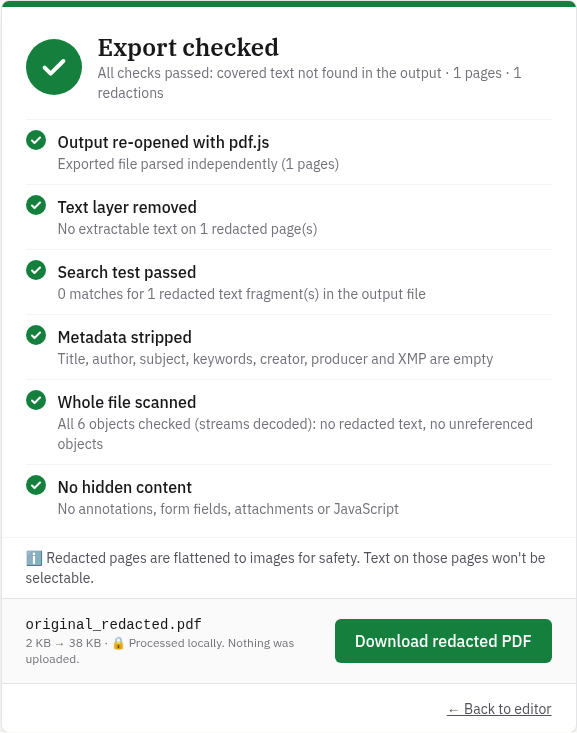
The six checks InkOut runs after every export
| Check | What it does | What a failure looks like |
|---|---|---|
| Output re-opened with pdf.js | Opens the exported file again, separately from the editor | "Exported file could not be parsed" |
| Text layer removed | Tries to extract text from every page you redacted | "Extractable text remains on page …" |
| Search test | Searches the text of the whole output for each piece of text that was under your boxes | "Search test failed: covered text still found" |
| Metadata stripped | Reads the title, author, subject, keywords, creator, producer and XMP metadata | "Still present: …" with the fields it found |
| Whole file scanned | Decodes every object in the file, including ones nothing points to, and looks for the covered text inside them | "… redacted text fragment(s) still in the file", "… unreferenced object(s)" or "… stream(s) could not be decoded" |
| No hidden content | Looks for annotations, form fields, attachments and JavaScript | "Found: …" with what it found |
All six must pass before the Download redacted PDF button works.
What "Review needed" means
"Review needed" means at least one check failed, so InkOut won't let you download that file. The failed check is marked in the list.
For example, if part of the exported file uses a compression method InkOut's scanner can't read, Whole file scanned reports "… stream(s) could not be decoded" and the download stays disabled, even when nothing you covered is visible. InkOut blocks a file it can't fully check rather than let it through.
What the automatic check can't tell you
- Whether you boxed everything. The checks confirm that what you covered is gone. They can't know about a name or number you didn't cover. Read every page before you export.
- Text inside images. On a scanned page, the words are part of a picture, not text. The search test only knows about text the PDF stores as text, so on a scan it has nothing to compare. Make sure each box fully covers the area on the page image.
- Pages you didn't redact. Those pages are copied into the new file as they were, so their text is still there and still selectable. That's intended, but it means anything sensitive on them stays unless you box it.
- The file name. The exported file is named after your original, with
_redactedadded. Rename it if the original name gives something away.
Check the file yourself in four steps
- Search for what you removed. Open the exported file in any PDF viewer, press Ctrl+F (Cmd+F on a Mac) and search for a word or number you redacted. It shouldn't be found.
- Try to copy it. Select the area under a box, copy it and paste it into a plain text editor. On a page InkOut redacted, nothing should paste, because the page is now an image.
- Look at the document properties. Most PDF viewers show the title, author and other details in a Properties or Info panel. In a file exported by InkOut, they should be empty.
- Run the free checker. Drop the file into the redaction checker. It looks for text left under dark boxes, which is how most failed redactions leak. It's free with no page limit.
What we found when we tested it
We tested the live site on October 21, 2026 (Pacific Time) in headless Google Chrome on Linux, with a 2-page sample PDF we made. Page 1 had the line "Account number: 1234-5678-SECRET", a link, a comment and a filled-in form field. The file also had a title ("Secret Title"), an author ("Jane") and two bookmarks.
| What we did | Result |
|---|---|
| Drew one box over the account number on page 1 and exported | "Export checked", all six checks passed. "Whole file scanned" reported "All 10 objects checked (streams decoded): no redacted text, no unreferenced objects". Size 3 KB → 28 KB. |
| Extracted text from the output with pdftotext | Page 1: no text at all. Page 2: "Page two: nothing to redact here", unchanged. |
| Searched the output file's bytes for "SECRET" | 0 matches |
| Read the output with pdfinfo and PyMuPDF | Title, author, creator and producer empty; dates set to 1970-01-01; no bookmarks, links, comments or form fields |
| Same sample, saved with print and copy restrictions (re-tested after a fix on October 21, 2026) | "Export checked", all six checks passed. The exported file has no restrictions. |
| A different sample with a black rectangle drawn over "SSN: 123-45-6789", run through the checker | "Leak found: text is still hidden under black boxes" |
FAQ
Can I download the file if a check fails?
No. When any check fails, InkOut shows "Review needed" and disables the download. Fix the cause and export again.
Does a passed check mean my document is safe to share?
It means the text you covered isn't in the exported file and no metadata or hidden content was found. It can't tell whether you covered everything that needed covering, so read the pages yourself before you share.
Why is the redacted file bigger than the original?
Each redacted page is rebuilt as an image, and an image of a page can take more space than its text did. InkOut's terms note that files may get larger. In our test the file grew from 3 KB to 28 KB.
Can I check a PDF that someone else redacted?
Yes. Use the free redaction checker. It finds text left under dark boxes. A clean result isn't proof: it can't see text baked into images, attachments, form fields or other hidden layers.
Can I redact a PDF that blocks printing or copying?
Yes. If it opens without a password, InkOut redacts it like any other PDF, runs the same six checks, and the exported copy has no print or copy restrictions.
Sources (checked 2026-10-21)
- InkOut PDF home page, "How we verify" section: https://inkoutpdf.com/
- InkOut PDF redaction checker (what a clean result does and doesn't prove): https://inkoutpdf.com/check-pdf-redaction
- InkOut PDF Terms of Service, section 3 (redacted pages become images; links, form fields and annotations on them are removed): https://inkoutpdf.com/terms
- InkOut source, verify() and the whole-file scan in src/lib/pdf.ts (inkout-annual branch, matching the live site); live tests with sample files, October 21, 2026.