Your options on Windows
| Option | Can it remove text from the file? | What to know |
|---|---|---|
| Adobe Acrobat Pro, Premium or Studio | Yes, with the Redact tool | Adobe says redaction is available only in those editions, not the free Acrobat Reader (Adobe). See how to redact in Adobe Acrobat |
| Microsoft Edge's built-in PDF reader | Not listed by Microsoft | Microsoft's documentation of the Edge PDF reader lists viewing and printing, basic form filling, inking, highlighting, text notes and read aloud (Microsoft Learn). It doesn't list a redaction tool |
| InkOut PDF, in Edge or Chrome | Yes | Runs in the browser, no install. Free up to 5 pages; black boxes only |
Microsoft's Edge page describes the reader as letting you "highlight, mark up, add text, and save your changes" (Microsoft). Marking up is not the same as redacting. If you blacked out something with a pen or highlighter in any PDF reader, test the saved copy as described below before you share it. We didn't test Edge's own tools for this page, because our test machine doesn't run Windows.
Why drawing over text isn't redaction: our test
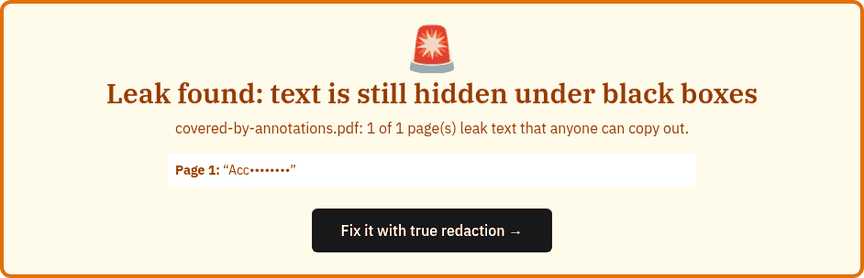
We made a 1-page PDF with an account number and a Social Security number, then covered each one with a black mark of the kind drawing and shape tools add: a black-filled rectangle over the account number and a thick black line over the SSN. On screen both numbers were completely hidden. But copying the text out of the file (with pdftotext) still returned "Account number: 1234-5678-9012" and "SSN: 123-45-6789", and InkOut PDF's free redaction checker flagged the page:
The U.S. District Court for the District of New Jersey gives filers the same warning: "highlighting text in black or using a black box over the data in MS Word or Adobe Acrobat will not protect the data from being able to be seen" (source).
We then opened the same file in InkOut PDF, drew two boxes over the covered numbers and exported. All six automatic checks passed, the exported file had no annotations and no extractable text left on the page, the title and author were empty, and running it through the checker again gave "No hidden text found under black boxes". The file went from 1,369 bytes to 21,784 bytes, because the redacted page is now an image.
How to redact a PDF on Windows in your browser
- Open this page in Edge or Chrome and click Choose PDF above. The file opens in the browser tab and isn't uploaded.
- Drag on the page to draw a box over each thing you want removed. Drag a box to move it; to remove one, tap or click it, then tap ×.
- Click Apply redaction(s). Each page with a box is rebuilt as an image with the box burned in, and the document metadata is left out.
- Read the automatic check, then click Download redacted PDF. Your original file isn't changed.
Check the saved file on Windows
Open the downloaded PDF, press Ctrl+F and search for part of what you removed, such as the last 4 digits of an account number. Then try to select and copy the area under a box. If either finds the text, the redaction failed. You can also drop any PDF into the free redaction checker.
What we tested, and what we didn't
We tested the live tool on October 22, 2026 (PT) in Google Chrome 155 on Linux, and again in Chrome's iPhone 13 device emulation with touch input (not a real iPhone). The tool is a web page, but we haven't run it in Edge or on a Windows PC. If anything looks wrong on your machine, the automatic check after export is still the thing to trust: the download stays disabled if a check fails.
Limits of InkOut PDF
- Free: up to 5 pages per file, with boxes you draw. Unlimited pages, several files and redacting every search match at once are part of Pro.
- Black boxes only. The box is always black.
- Pages you redact become images. Text on those pages can't be selected or searched afterwards, and the file gets bigger. Pages without boxes keep their text.
- No OCR. Search only finds text that's really in the PDF. On a scan or a photo, draw the boxes by hand.
Related guides
- Redact a PDF in your browser
- How to redact in Adobe Acrobat
- How to redact a PDF on a Mac
- Black out text in a PDF
- Check a redacted PDF
FAQ
Can Microsoft Edge redact a PDF?
Microsoft's documentation for the Edge PDF reader lists inking, highlighting and text notes, but no redaction tool. A pen or highlighter mark covers text without removing it, so search the saved copy before you share it.
Do I need Adobe Acrobat Pro to redact on Windows?
No. Adobe says its Redact tool is in Acrobat Pro, Premium and Studio, but you can also redact up to 5 pages free in your browser with InkOut PDF.
Does InkOut PDF work in Edge and Chrome?
It is a web page that runs in modern browsers. We tested it in Google Chrome; we have not tested it in Edge on a Windows PC.
How do I check a redacted PDF on Windows?
Open the saved file, press Ctrl+F and search for part of what you removed, then try to copy the area under a box. Or drop the file into the free redaction checker on this site.
Sources (checked 2026-10-22)
- Microsoft Learn, "PDF reader in Microsoft Edge" (feature list; page dated 2024-07-18): https://learn.microsoft.com/en-us/deployedge/microsoft-edge-pdf
- Microsoft, "PDF reader in Microsoft Edge" (features page): https://www.microsoft.com/en-us/edge/features/pdf-reader
- Adobe Experience League, "Redact sensitive information" (Redact tool editions): https://experienceleague.adobe.com/en/docs/document-cloud-learn/acrobat-learning/advanced-tasks/redact
- U.S. District Court, District of New Jersey, "Personal Identity and Metadata Redaction Techniques for E-Filing": https://www.njd.uscourts.gov/content/personal-identity-and-metadata-redaction-techniques-e-filing
- InkOut PDF live tool and redaction checker, tested 2026-10-22: https://inkoutpdf.com/